Meet Jason,
my AI Desk Buddy
Talk to Jason, watch his expressions change, read the conversation on his OLED, and check the time, day, and date—all in a compact, battery-powered build.
Jason in Action
A compact AI voice assistant with a face that reacts while we chat.


How Jason Works
Jason runs Xiaozhi firmware on a XIAO ESP32-S3. It connects over Wi-Fi for AI conversations, while the OLED and speaker bring his responses to life.
Speak to Jason
An INMP441 I²S microphone captures your voice for the Xiaozhi assistant.
AI Conversation
The ESP32 connects to Wi-Fi and the configured Xiaozhi agent to process and answer.
Animated Face
The 1.3-inch OLED shows expressions and conversation text, plus the day, date, and time.
Voice Reply
A MAX98357A I²S amplifier drives the 2-watt speaker for Jason’s response.
Internet required: Xiaozhi’s AI conversations use Wi-Fi. The LiPo battery and boost module make the hardware portable, but the assistant still needs an internet connection.
Components Required
These are the parts used in this build. The component links are optional shopping references.
| Component | Purpose | Link |
|---|---|---|
| Seeed Studio XIAO ESP32-S3 | Main controller | Buy → |
| 1.3-inch OLED display, I²C | Face, text, time and date | Buy → |
| INMP441 microphone module | I²S audio input | Buy → |
| MAX98357A amplifier module | I²S audio output | Buy → |
| 2-watt speaker | Voice output | Buy → |
| TTP223 touch sensor | Touch input | Buy → |
| 5V boost and charging module | Battery charging and 5V power | Buy → |
| 3.7V LiPo battery | Portable power | Buy → |
| Mini slide switch | Main power switch | Buy → |
| Push button | Boost module wake control | Buy → |
| Breadboard | Initial testing | Buy → |
| Jumper wires | Breadboard connections | Buy → |
Pin Connections
Connect the modules as shown below and use firmware configured for these pin assignments.
| Module | Module pin | XIAO / connection |
|---|---|---|
| OLED | SDA | D4 |
| OLED | SCL / SCK | D5 |
| OLED | VCC / GND | 3V3 / GND |
| INMP441 mic | SCK | D1 |
| INMP441 mic | WS | D2 |
| INMP441 mic | SD | D3 |
| INMP441 mic | VDD / GND / L/R | 3V3 / GND / GND |
| MAX98357A amp | DIN | D10 |
| MAX98357A amp | BCLK | D8 |
| MAX98357A amp | LRC / LRCLK | D9 |
| MAX98357A amp | SD MODE / GAIN | 3V3 / GND |
| MAX98357A amp | VIN / GND | Switched 5V / GND |
| Speaker | + / − | Amplifier + / − |
| TTP223 touch | I/O / VCC / GND | D0 / 3V3 / GND |
| 3.7V LiPo | + / − | Boost B+ / B− |
| Boost 5V output | + / − | Slide switch → XIAO 5V and amp VIN / common GND |
| Wake push button | Two opposite contacts | Boost K / battery B− |
Before applying power: Check battery polarity and every module pin label. The wake button briefly connects the boost module’s K pad to battery B−.
Buy Enclosure
Give your build a clean finish without the tangle of jumper wires. This compact enclosure is made for Jason’s display and speaker, with a matching front plate that completes the look. Order a printed set or print it yourself from the STL files.


Jason Desk Buddy Enclosure Set
Enclosure body and matching front plate, printed in white PLA.
Only 9 left in stock
- Includes enclosure body and front plate
Shipping is quoted in Instagram chat after you share your delivery city. The total is confirmed before payment.
Message to Buy on Instagram →Instagram may open the app. Messaging does not place an order.
Prefer printing it yourself? Download the STL files.
Flash the Code
Flash directly from the Simple Circuits web flasher in a compatible desktop browser; no Arduino IDE installation is needed for this build.
Simple Circuits Xiaozhi Desk Buddy
Connect your XIAO ESP32-S3 to your laptop or PC using a data-capable USB cable.
⚡ Flash FirmwareUse desktop Chrome or Edge for the serial connection.Choose the board
Select XIAO ESP32-S3 (or the matching board for your own hardware), then select your time zone.
Connect and install
Click Connect & Install Firmware, choose your board’s serial port, and select “Simple Circuits Xiaozhi Desk Buddy.”
Wait for completion
Leave the board connected until the installation finishes, then restart it if prompted.
Connect Jason to Xiaozhi
Follow the prompts on the OLED after flashing.
Connect your phone to Jason
Join the temporary Wi-Fi hotspot created by the ESP32.
Give Jason your home Wi-Fi
Open the address shown on the OLED in your phone browser, select your Wi-Fi, and enter its password. The ESP32 then connects to your network.
Add the device
Open xiaozhi.me, log in, choose Add Device, and enter the six-digit code shown on the OLED.
Configure your agent
Choose your preferred language and voice, then talk to Jason.
Full Video Tutorial
Watch Jason go from breadboard prototype to finished AI desk buddy.
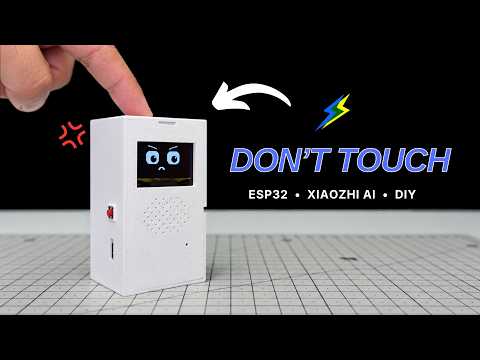 Watch the full build on YouTube
Download PCB Files
Want to build Jason on the custom PCB? Open the project folder below to download the PCB files.
Download PCB Files →From Breadboard to PCB
The jumper-wire prototype helped test Jason’s firmware. I then designed a compact custom PCB and ordered it from AIVON to make the final assembly cleaner.
PCB manufacturing with AIVON
For this project, I uploaded the PCB fabrication files, selected the board options for my build, and placed the order through AIVON. My order used a new-user coupon; pricing and delivery depend on the selected options and location.
Explore AIVON →PCB design with Altium
I designed the board in Altium. Students can explore Altium Student Lab for PCB learning resources and design practice.
Explore Altium Student Lab →
Comments
Post a Comment